Create a product catalog
Create a product catalog for your GoDaddy Smart Terminal Duo that includes all the products that you sell. Your product catalog works hand in hand with the Register app on your GoDaddy Smart Terminal Duo, where you use the products to build orders and process transactions.
You can create and assign product catalogs from your web browser or directly on the GoDaddy Smart Terminal Duo itself.
Note: We recommend creating the initial catalog in your web browser, since you’ll have the option to bulk upload products and assign the catalog to multiple devices. It’s usually a lot quicker, especially if you’ve got more than one device.
Create a product catalog, add products, and assign the catalog to your device(s) – all in one place.
One default catalog is automatically created for your GoDaddy Smart Terminal Duo based on your store name. (You can rename it if you’d like.)
- Sign in to your Selling In Person Overview page (use your GoDaddy username and password).
- Select Catalogs.
- Select Create Catalog.
- Add a new or existing catalog:
- To create a new catalog - Select Create New and enter a Name for the catalog. Select Save.
- To use an existing catalog - Choose Select existing and check the box next to the catalog(s) to add. Select Add.
- Add products to your catalog by importing, uploading or manually entering them. You’ll need to add at least one product to the catalog before you can assign it to your device.
- Select the catalog that you want to assign to a terminal, then select Assign to Terminal.
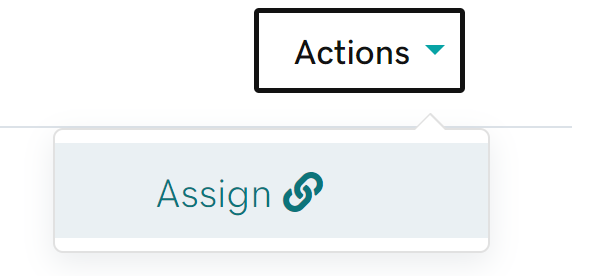
- You’ll see a list of devices that are associated with your GoDaddy Payments account. Next to the device where you want to assign the catalog, select Actions > Assign. This connects the product catalog to your device.
- On your GoDaddy Smart Terminal Duo home page, tap Catalog to see the linked product catalog and all associated products.
Create and manage your catalog and products right from the interface on your GoDaddy Smart Terminal Duo.
Note: If you’ve added multiple catalogs, you can switch between them on the GoDaddy Smart Terminal Duo by tapping Catalog > Switch > the catalog name > Assign.
- From your GoDaddy Smart Terminal Duo home page, tap Catalog.
- Tap Switch in the upper-right corner, then tap Create Catalog.
- Add a new or existing catalog:
- To create a new catalog - Select Create New and enter a Name for the catalog. Select Save.
- To use an existing catalog - Choose Select Existing and check the box next to the catalog(s) to add. Select Add.
- Manually add products to your catalog on the GoDaddy Smart Terminal Duo. You’ll need to add at least one product to the catalog before you can assign it to your device.
- Verify that your catalog name appears in the upper-left corner of the Catalog app. (If a different catalog name appears in the app, tap Switch, then select the correct catalog from the list.) Tap Assign.
- Tap Yes to assign the catalog and associated products to your GoDaddy Smart Terminal Duo.
More info
- Check out some best practices for creating and maintaining your product catalog.
- Add products to your product catalog from your online store, web browser or GoDaddy Smart Terminal Duo.
- Use the Register app to create an order on the GoDaddy Smart Terminal Duo.