
Add my Professional Email to Mail (Windows)
Step 5 of the Set up my Professional Email series.
Add Professional Email to the Mail app for Windows so you can send and receive business emails.
- From the Start menu, open Mail.
- If you've used the app before, select
 Settings, and choose Manage Accounts. Otherwise, continue to the next step.
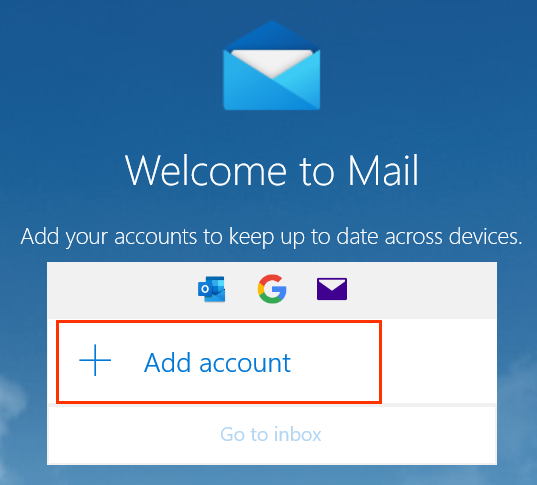
 - Select Add account.
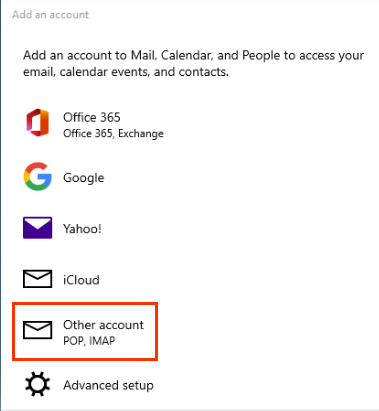
- Choose Other account.
- Enter your email address, the name you want displayed on emails you send, and your password.
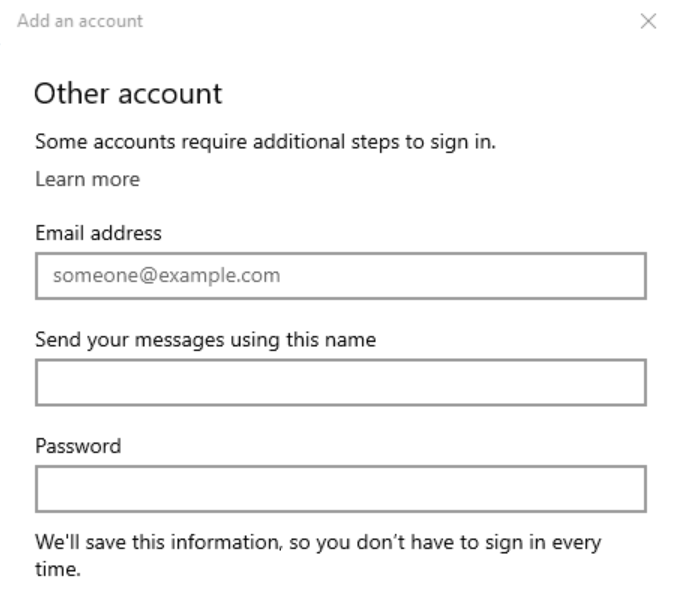
- Select Sign in. Your server settings will be discovered automatically by the Mail app, and your Professional Email is now set up.
- If Mail can't auto-discover your email account, see Use IMAP settings to add my Workspace Email to a client.