
Add my Microsoft 365 email to Outlook (Windows)
Step 3 of the Set up my Microsoft 365 account series.
Add your Microsoft 365 email to Outlook 2016 (or newer) for Windows PC. Then you can send and receive business emails.
- Open Outlook. (Don't have the app? Here's how to download it.)
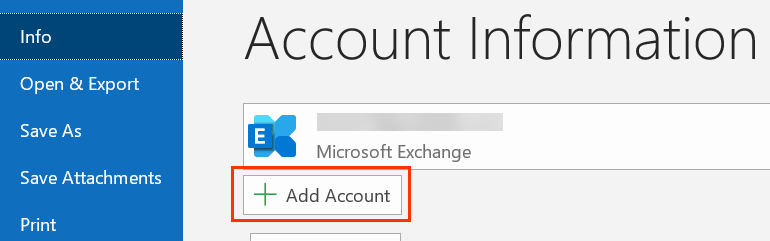
- Select File, and then select + Add Account.
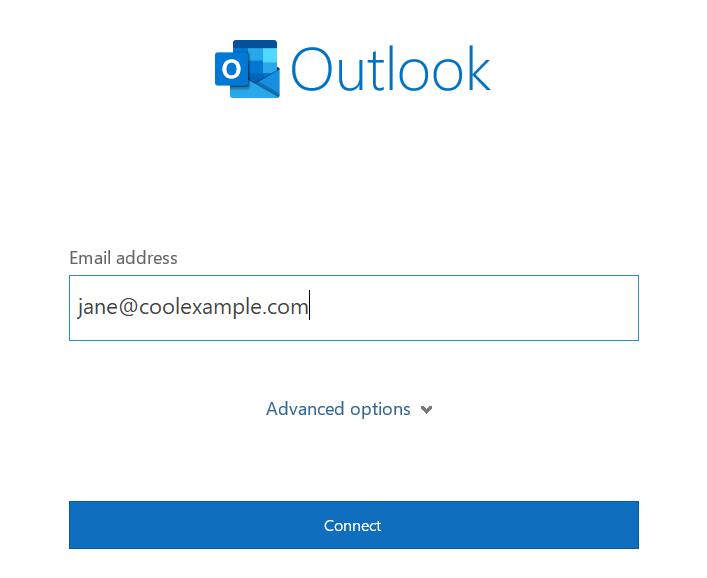
If you haven't opened Outlook before, you'll see a welcome screen. - Enter your Microsoft 365 Email address and select Connect.
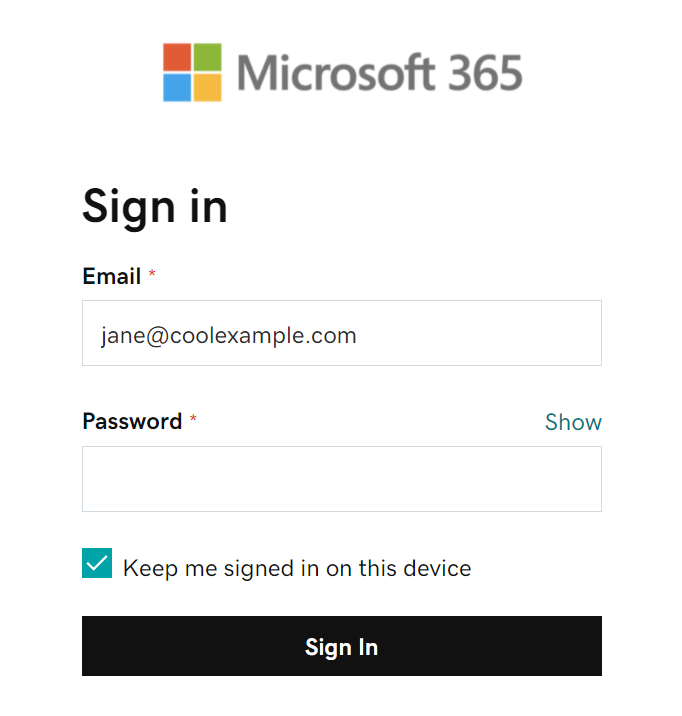
- Enter your Microsoft 365 Password and select Sign In. If asked, choose if you want to use this account everywhere on your device.
- If your admin enabled multi-factor authentication (MFA), verify your account or set up the Authenticator app.
- Once Outlook shows that the email was added, select Done.
Note: You might need to choose your account type as Work or School to continue.
More info
- Make sure you're using the latest version of Outlook. Microsoft ended support for some versions, including Outlook 2007, 2010 and 2013 for Windows.
- Troubleshoot common issues for setting up Outlook
- Outlook error: The action cannot be completed