Add my Microsoft 365 email to Outlook on iPhone or iPad
Step 3 of the Set up my Microsoft 365 account series.
Add your Microsoft 365 email to Outlook for iPhone and iPad. Then you can send and receive emails wherever you are.
- Open Outlook. (Don't have the app? Download it at the iTunes App Store. Then tap Get started, choose your preferences, and go to step 4.)
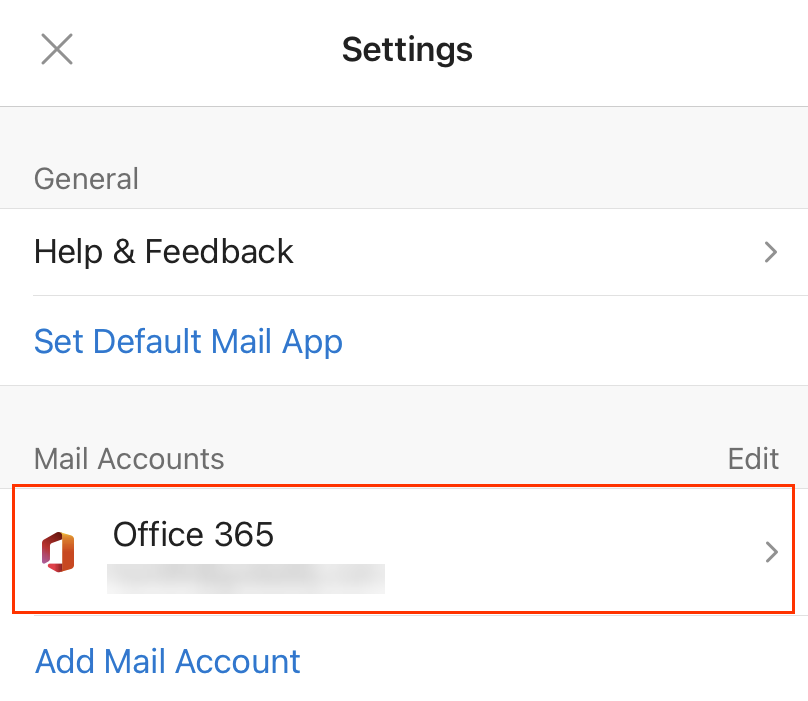
- Tap Menu >
 Settings.

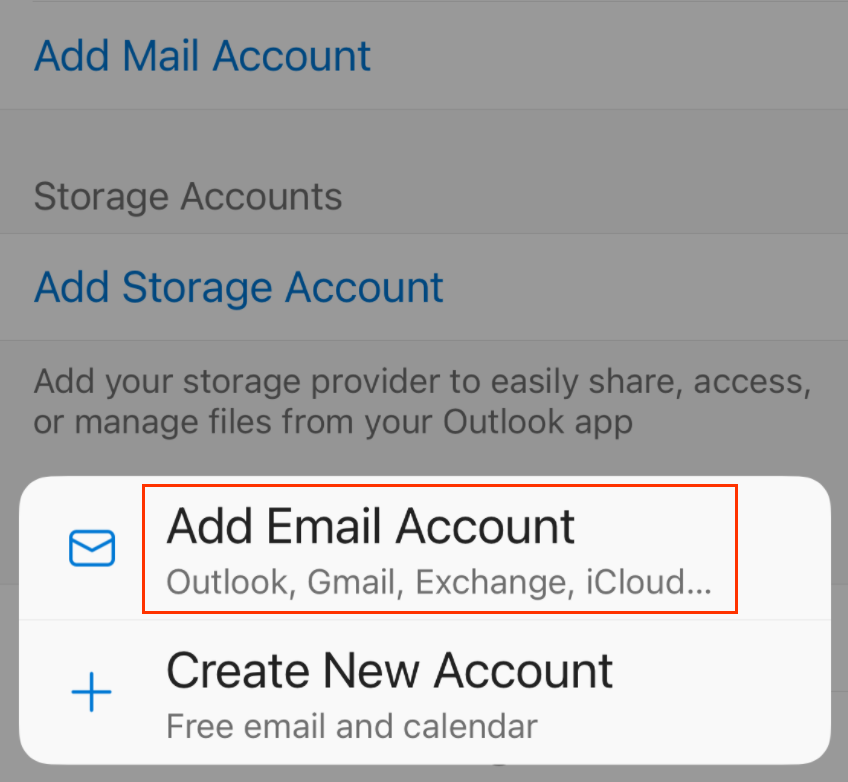
- Tap Add Mail Account > Add Email Account.
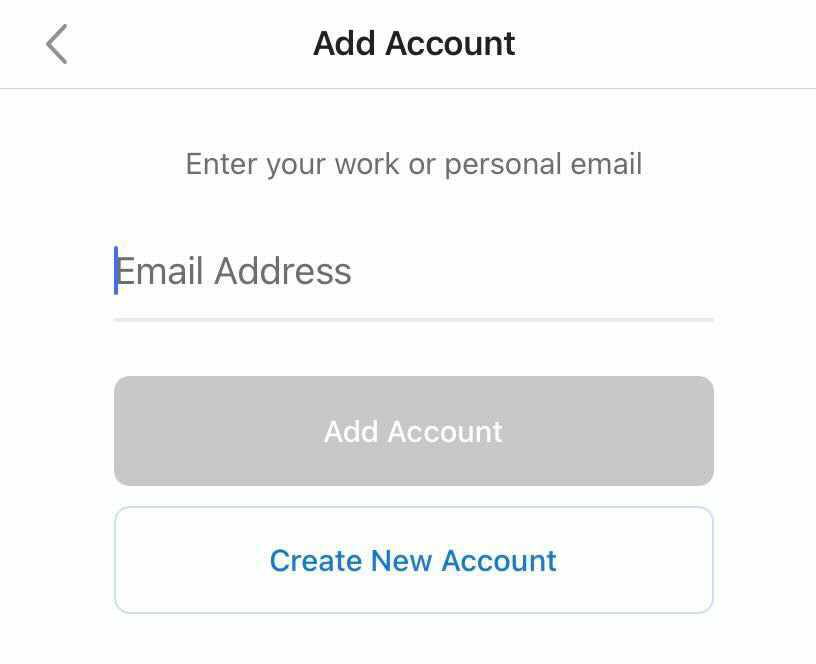
- Enter your Microsoft 365 email address and tap Add Account.
- If your admin enabled multi-factor authentication (MFA), verify your account or set up the Authenticator app.
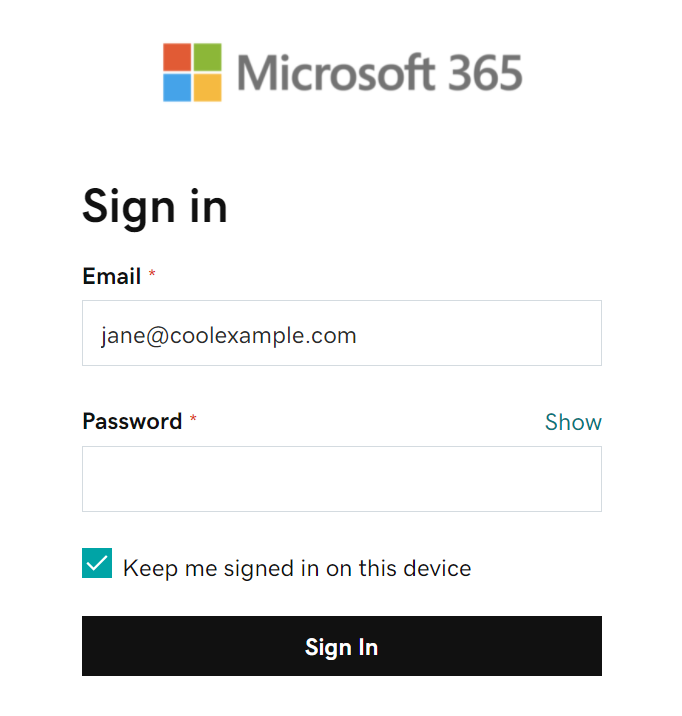
- Enter your Microsoft 365 password and tap Sign In. (You might need to choose your account type as Work or School.)
- Your Microsoft 365 account now shows in Settings. Go to your Inbox to check your email.