
Add my Microsoft 365 email to Outlook (Mac)
Step 3 of the Set up my Microsoft 365 account series.
Add your Microsoft 365 email to Outlook for Mac. You'll then be ready to send and receive business emails.
- Open Outlook. (Don't have the app? Here's how to download it.)
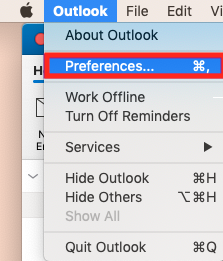
- From the menu bar, select Outlook > Preferences.
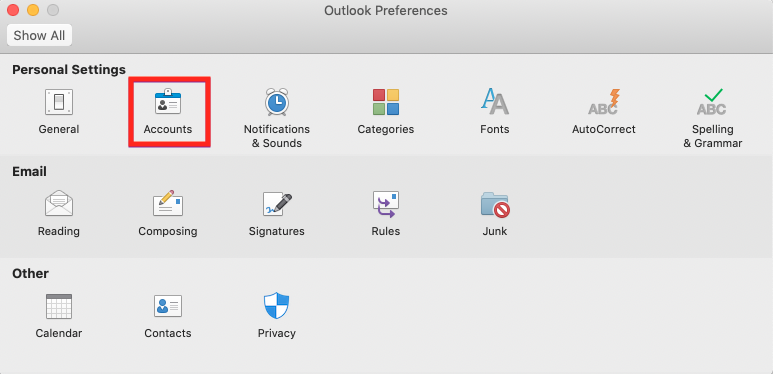
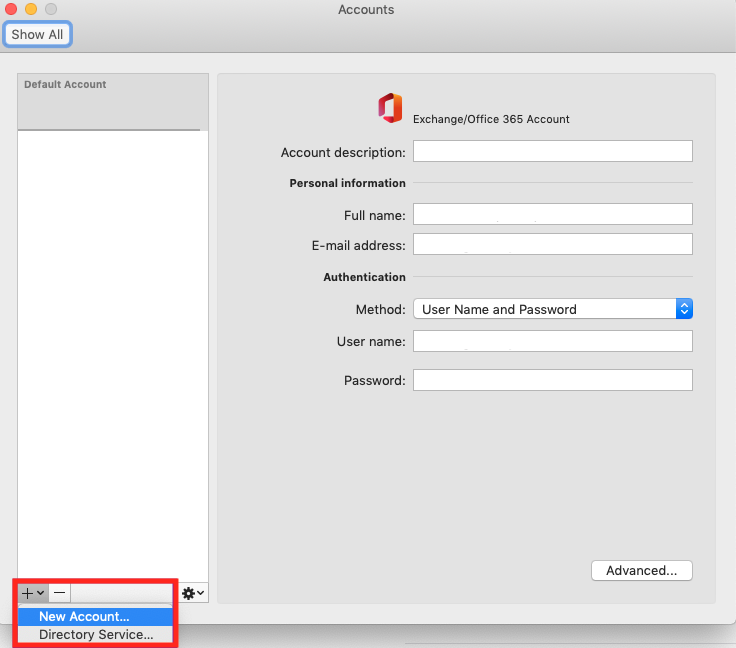
- Select Accounts.
- Select + (plus) > New account.
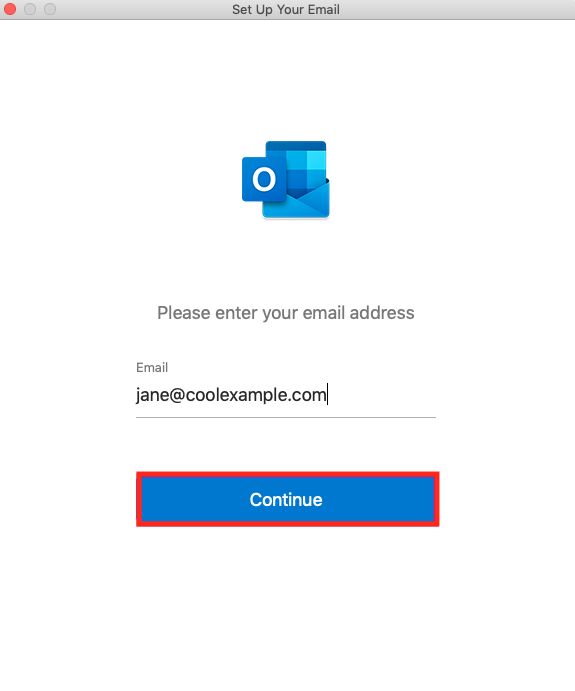
- Enter your email address and select Continue.
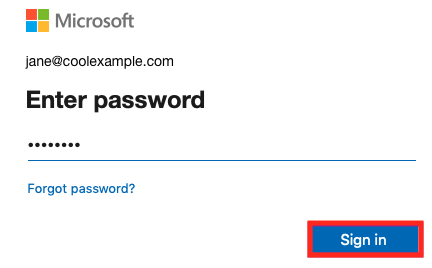
- Enter your email password and select Sign in.
- If your admin enabled multi-factor authentication (MFA), verify your account or set up the Authenticator app.
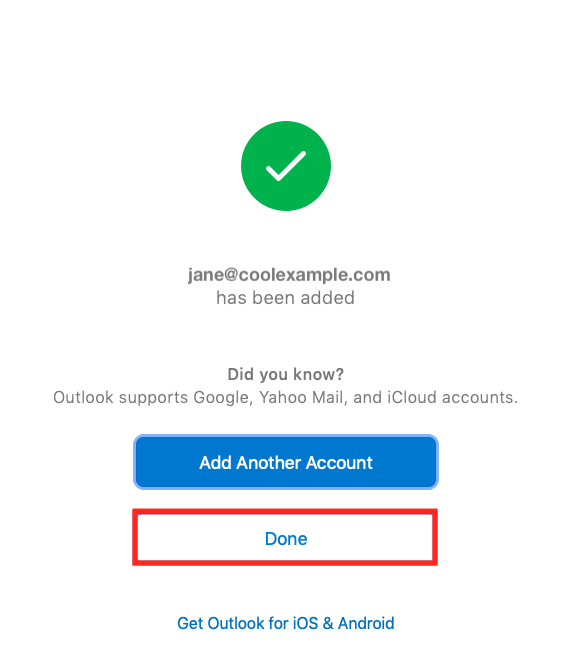
- Select Done. If you have more than one account, decide which account you want to set as the default.
Note: You might need to choose your account type as Work/School to continue.
Your account will display, and your email will load, which can take a few minutes.