
Add my Microsoft 365 email to Mail (Mac)
Step 3 of the Set up my Microsoft 365 account series.
Add your Microsoft 365 email to the Mail app. Then you can send and receive business email from your Mac.
- Open Mail. (If this is your first time using Mail, opening the app will start the process.)
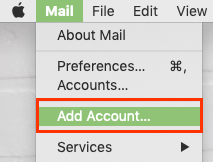
- From the menu bar, select Mail > Add Account.
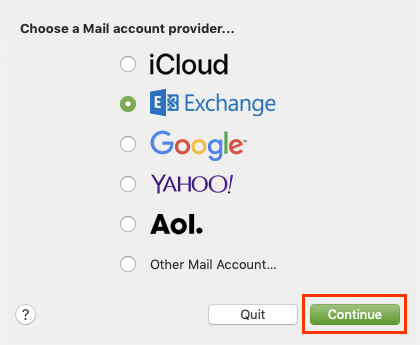
- Select Exchange and Continue.
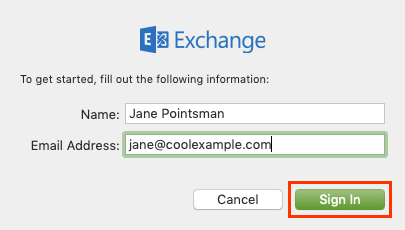
- Enter your Name and Microsoft 365 Email Address, and select Sign In.
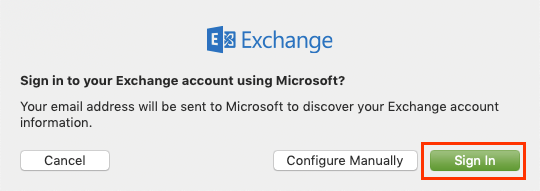
- Select Sign In again to let Microsoft locate your email address and account info.
- If your admin enabled multi-factor authentication (MFA), verify your account or set up the Authenticator app.
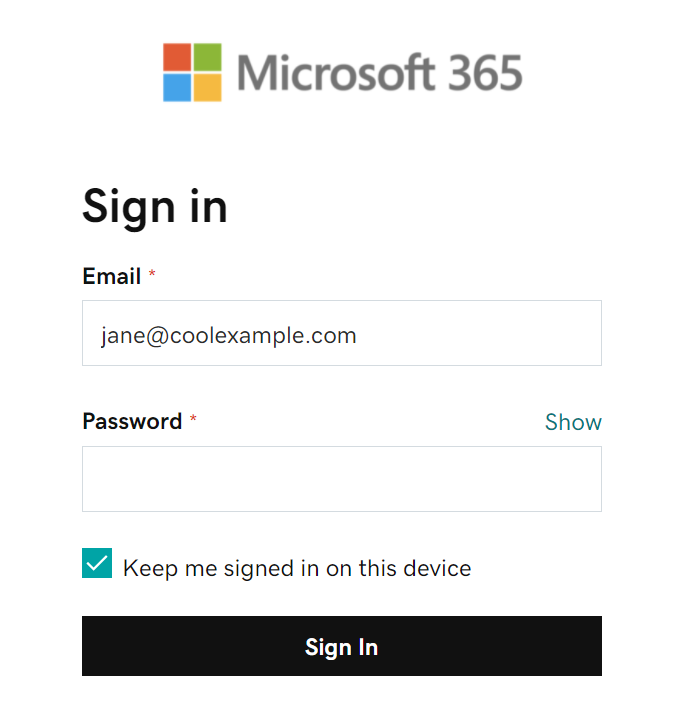
- You'll be redirected to the Microsoft 365 sign-in page. Enter your email Password and select Sign In.
- The app will request permission to your account. Select Accept.
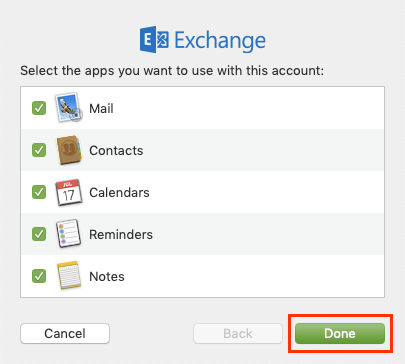
- Select Done. You can come back and edit these settings at any point.
Note: You might need to choose your account type as Work or School to continue.
Note:
If Microsoft can't find your email, you'll be asked to enter your details manually:
• Username: Your Microsoft 365 email address
• Password: Your Microsoft 365 email password
• Internal URL: outlook.office365.com
• External URL: outlook.office365.com
Your account will display and your email will load, which can take a few minutes.